

Transfer system for bus operators
Sell tickets to passengers in cities where you have no bus stop. BUSPORTAL adds a pickup from the passenger's address to the scheduled bus, or from the bus back home, to the ticket, calculates the price automatically and helps the dispatcher distribute the requests across cars.
The passenger books the ticket and the transfer in one order. The dispatcher sees every address, car and route on one screen, and the driver gets the sequence of points in the phone.
Try Live Pilot for free
- New cities to sell in without changing the main route
- Automatic calculation of the transfer price
- Passengers split between your own cars and partners
- Driver route, navigation and statuses in the phone


TICKET SALES
Sell tickets where your bus does not stop
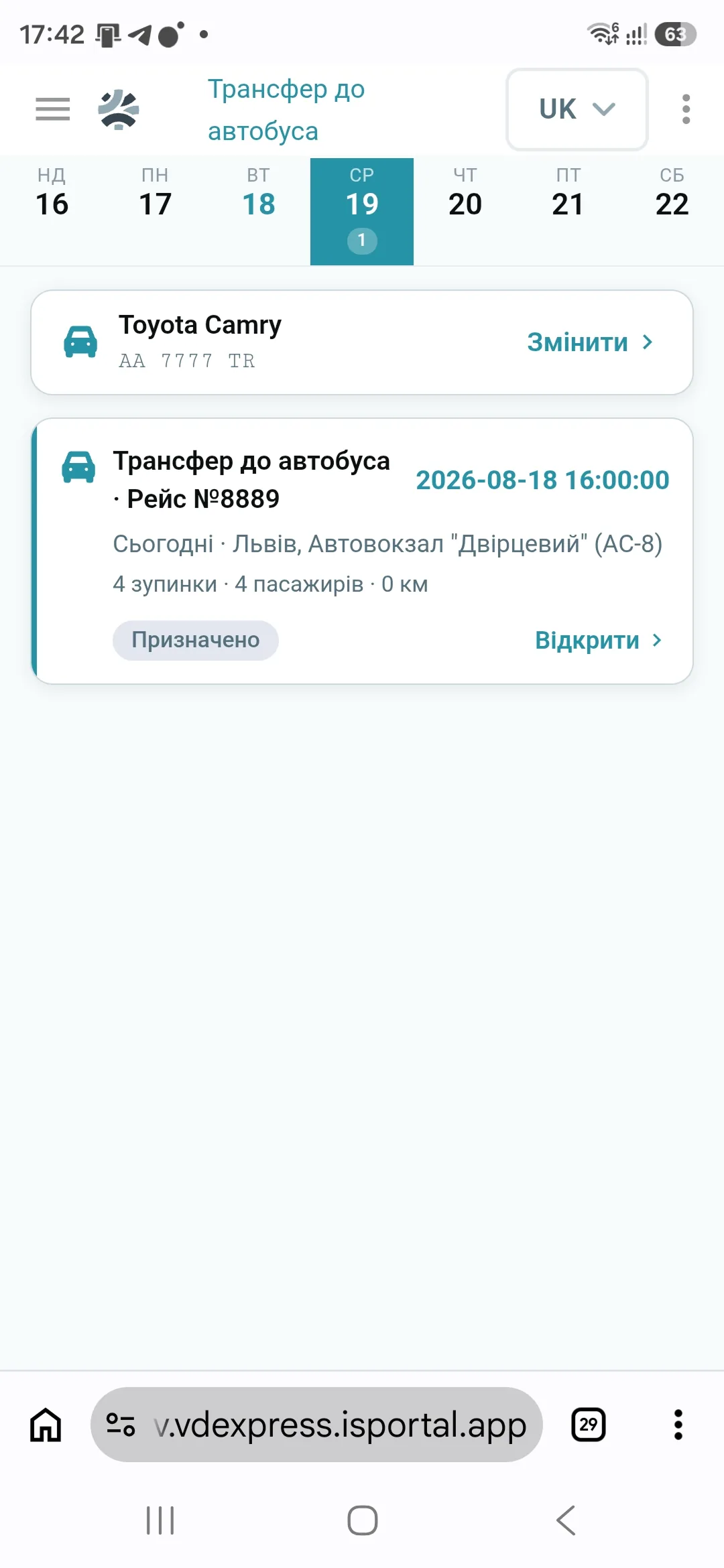
You mark geo zones on the map — towns, districts or individual addresses around the route — and sell tickets to passengers there. The ticket includes a pickup to the scheduled bus or a drop-off home afterwards, so your sales area is no longer limited by the stops on the route.
The BUSPORTAL transfer system makes the pickup part of the bus journey. You define the service areas, the pricing rules and the vehicles, and the passenger immediately sees the available trip with a transfer.
This helps the carrier:
 sell tickets to passengers from neighbouring towns and villages
- expand the sales area without adding new stops to the main trip
- pick passengers up from a stated address or an agreed meeting point
- arrange drop-offs once the bus has arrived
- replace spreadsheets, phone calls and chats with a single workflow
- keep control of the cost of your own cars and external taxis
ORDERING
How a passenger books a ticket with a transfer
The pickup is booked together with the ticket, not arranged separately with the dispatcher.
- 1. The passenger searches for a trip from their own citySearch can show cities where the bus has no stop but the carrier has arranged a transfer. The passenger does not have to work out where the nearest bus departs from and how to get there.
- 2. The system shows the available pickupIn the trip card the passenger sees that a pickup to the bus, or a drop-off from the bus to an address, is available for the journey. The service type, the approximate time and the price are shown right there.
- 3. The passenger enters the addressThe address can be picked on the map or typed in. The system checks whether it falls inside a geo zone the carrier serves. If the address is outside it, the passenger finds out before placing the order.
- 4. The price is calculated automaticallyThe price follows the rules of the relevant geo zone: it can be a fixed amount, a distance-based calculation or a free pickup included in the ticket price.
- 5. Ticket and transfer are booked in one orderThe address, the transfer direction and the details of the main trip are stored together. The passenger does not have to register with a taxi service separately or give their details to the dispatcher again.
GPS tracking works inside BUSPORTAL, so there is nothing to connect separately to your trips, tickets and dispatcher's work.
GEO ZONES
Geo zones and automatic pricing
The carrier decides where passenger pickup is available. To do that, a geo zone is drawn on the map — a polygon around a city, a district or a group of settlements.
Each geo zone is configured separately for:
- the transfer direction — to the bus, from the bus or both ways
- the stop on the main trip the passenger has to be delivered to
- the pricing rules
- the approximate passenger pickup time
- the fleet of cars serving this area
- the responsible branch or dispatcher group
- limits on passenger seats and boot capacity
- the service types available
If the passenger's coordinates fall inside a geo zone, they can order a transfer. The price is added to the order automatically under the rules of that area.
A carrier can create several geo zones with different rates. For a city, for example, set a fixed price; for the suburbs, a distance-based calculation; and for a regular destination, include the pickup in the ticket price.

Every transfer request on one dispatcher screen
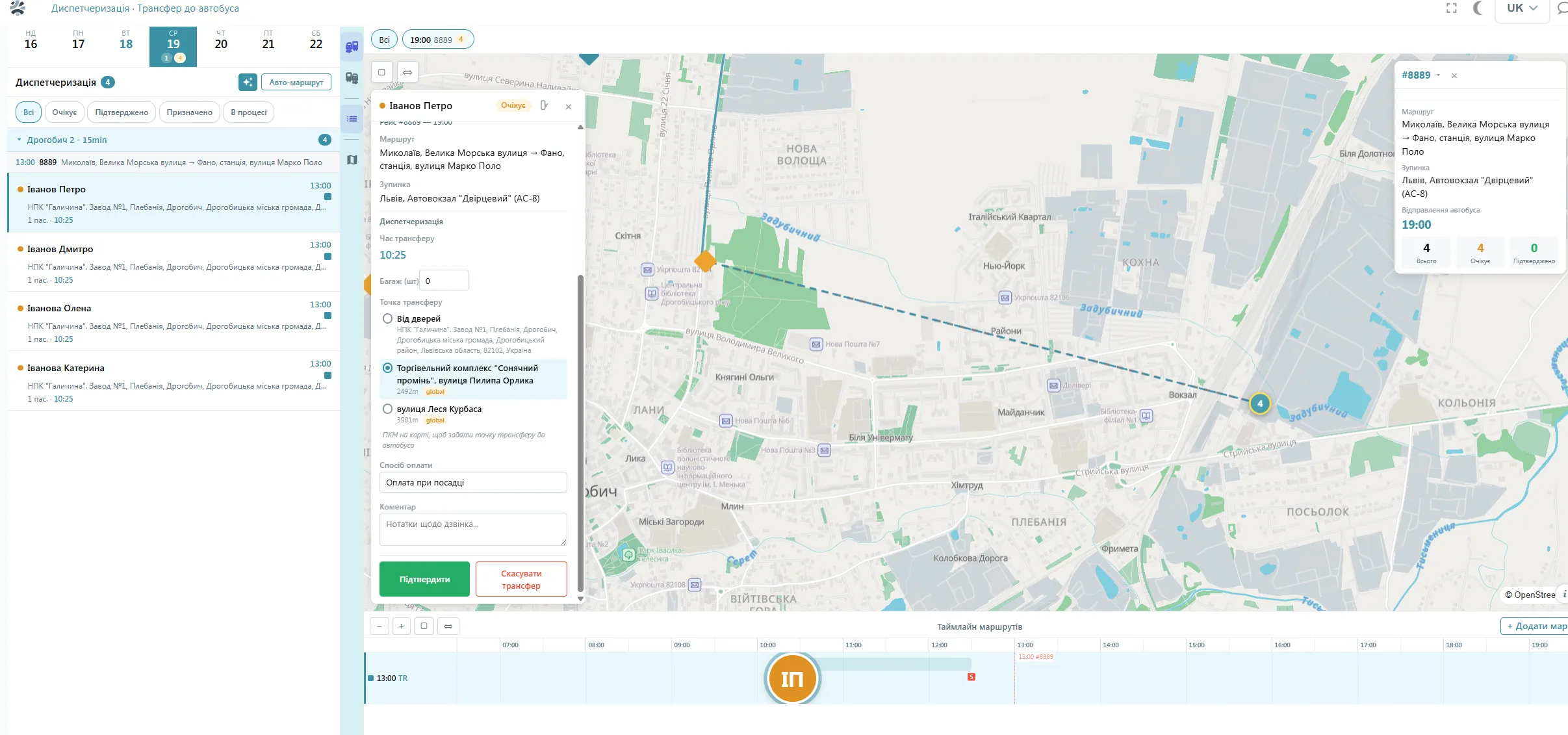
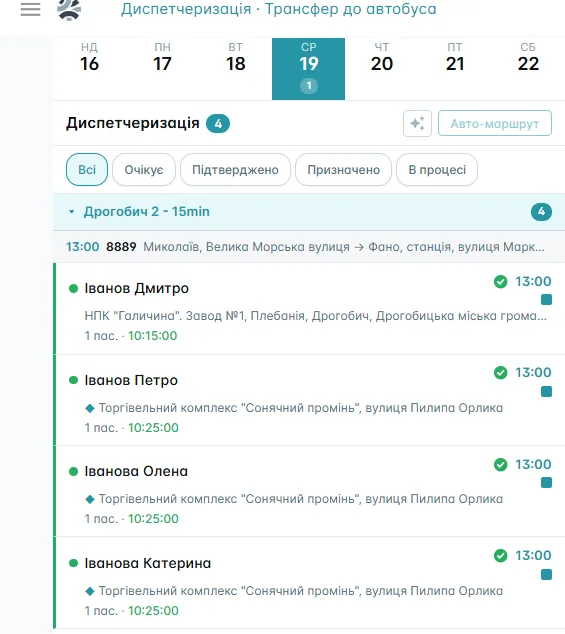
The dispatcher opens the date they need and sees every passenger who needs a pickup: addresses, number of people, luggage, direction, the time of the main trip and the status of the request.
The request is created from the ticket data automatically. There is no need to copy addresses out of chats or write the information into a spreadsheet again.
The passenger's address determines the geo zone and the responsible branch. Each dispatcher works with their own region, and routes do not mix requests from different branches.
ROUTE PLANNING
Automatic route planning
The system suggests which car picks up each passenger, in what order to visit the addresses and what time it has to arrive.
The calculation takes into account:
- passenger seats and boot capacity
- the departure or arrival time of the main bus
- the estimated travel time between addresses
- the acceptable passenger waiting time
- the assignments already confirmed
- car availability
Merging passengers into one shared point
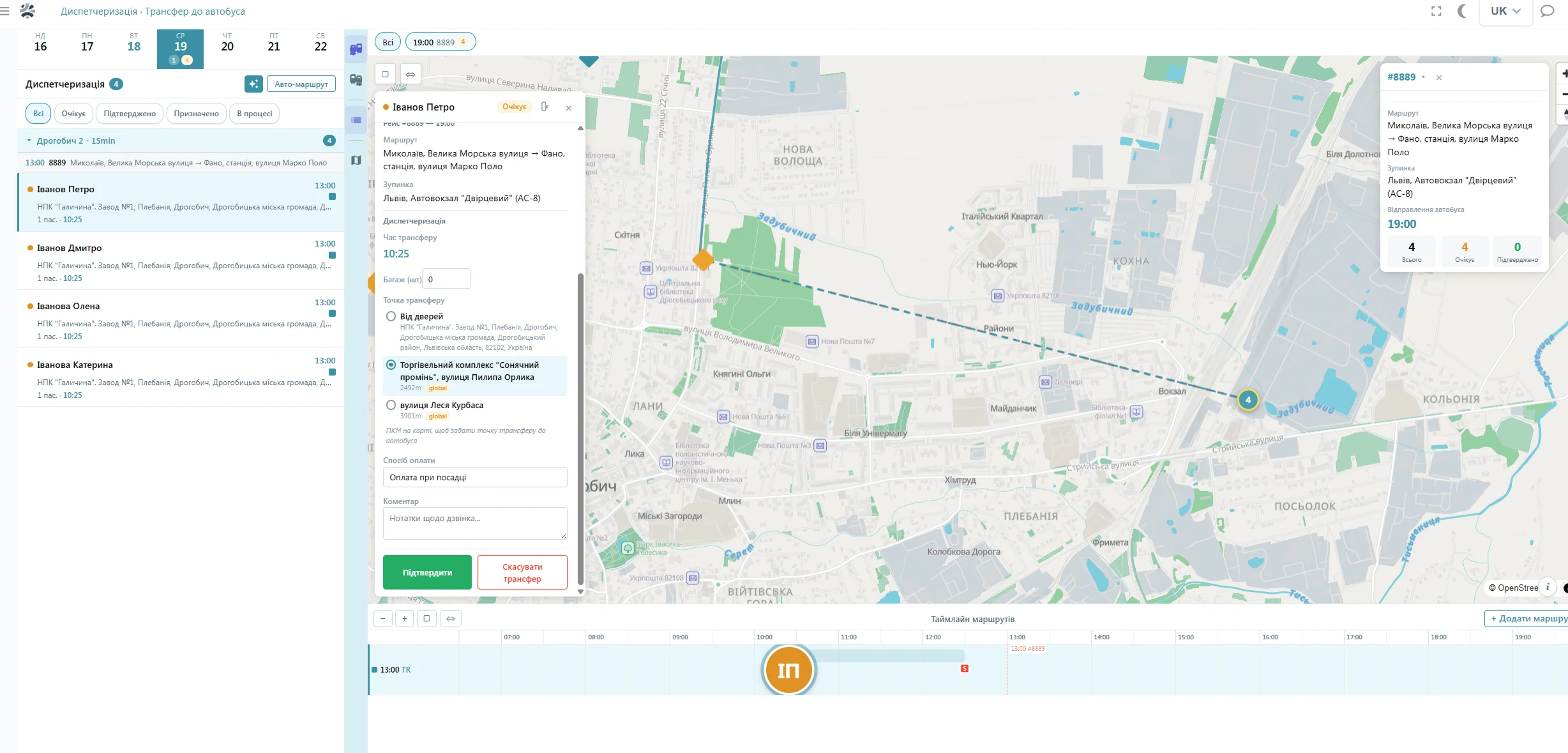
If several passengers are close to each other, the dispatcher can offer them one convenient meeting point. That shortens the route and cuts the cost of the pickup.

Manual adjustment
The dispatcher can move a request to another car or change the order of the points. Before saving, the system shows whether there are enough seats and whether the passenger would be late for the scheduled bus.
Once confirmed, the passenger stays attached to the assigned car even after other routes are recalculated. That protects an already agreed pickup time from being changed automatically by accident.
Clear reasons for conflicts
If a request cannot be added to a route, the dispatcher sees the exact reason: no car available, not enough seats, the address is outside the geo zone, or the car would not make it before the bus departs.
Own cars
Own cars or an external taxi
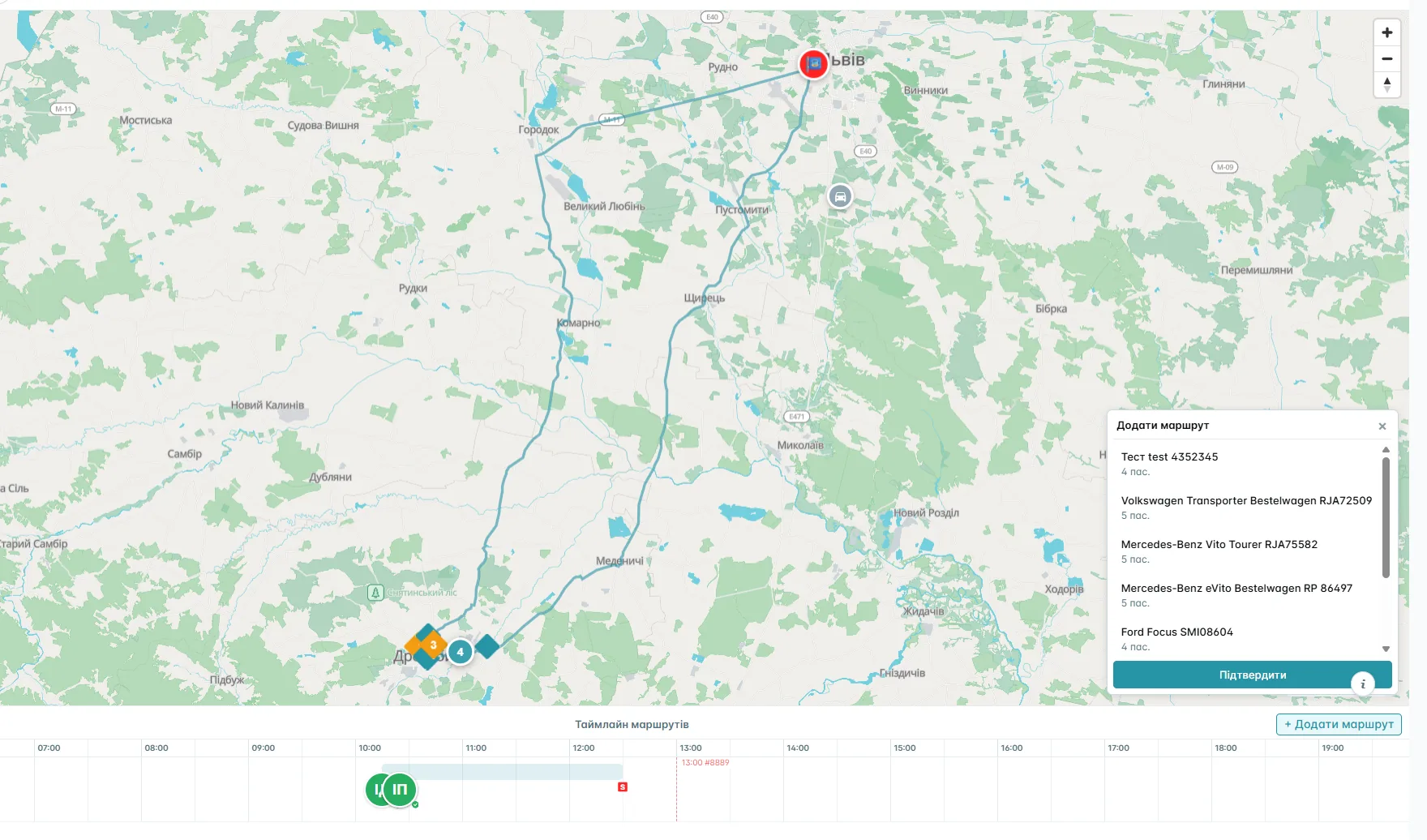
Before assigning, the dispatcher sees the available cars, their capacity and the calculated route. If your own fleet cannot cover a request, it can be handed to an external partner with the price and the responsible provider recorded.
The system stores:
- who performs the transfer
- which car the passenger is attached to
- the planned pickup time
- the change history
- the cost of own or hired vehicles
- the actual completion status
The arrangement no longer depends on one dispatcher's memory or a message in a private chat.
ROUTE IN THE PHONE
The transfer driver's route — in the phone
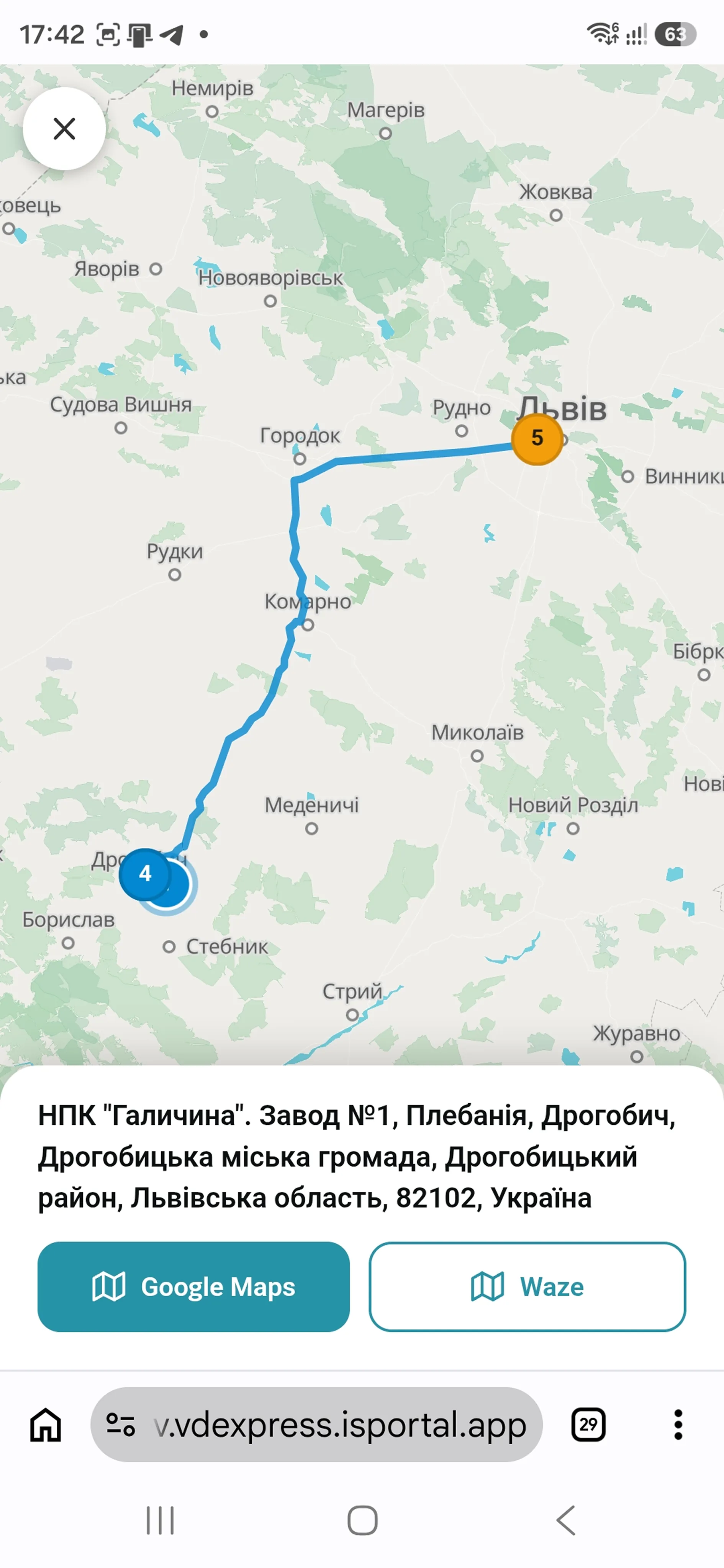
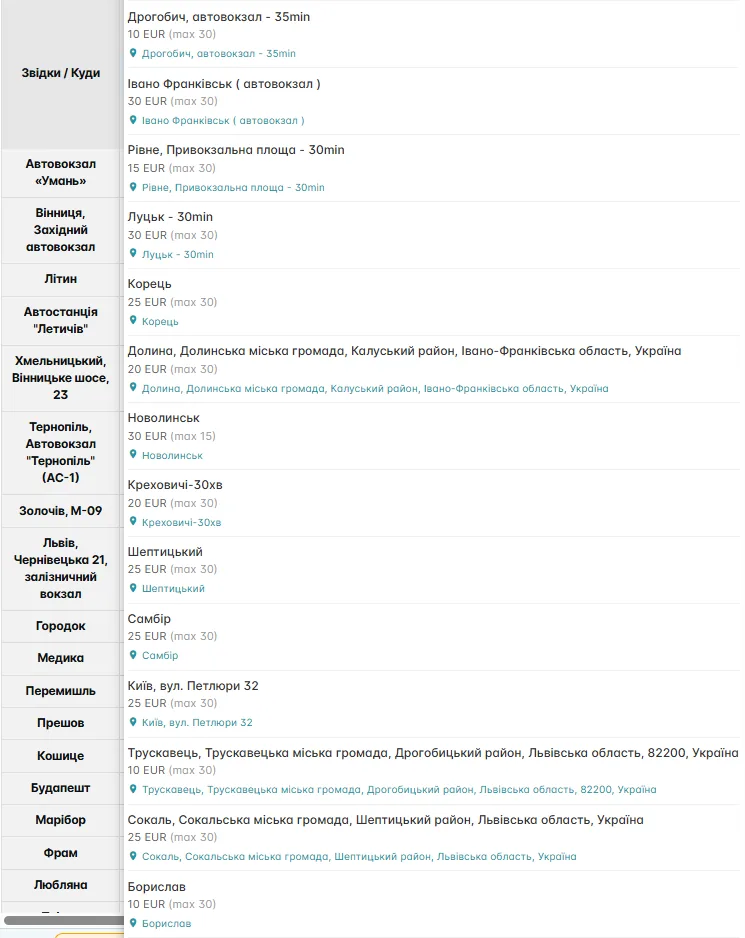
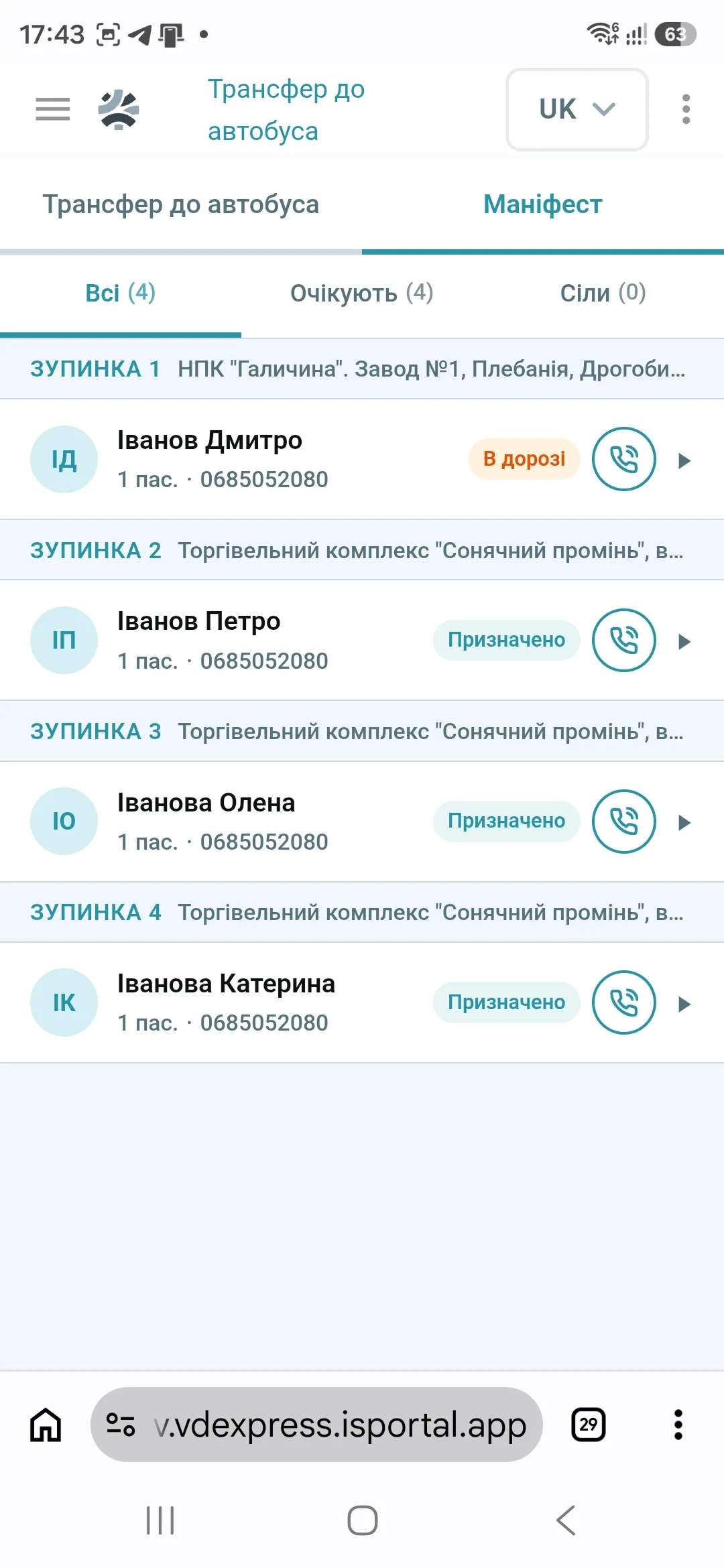
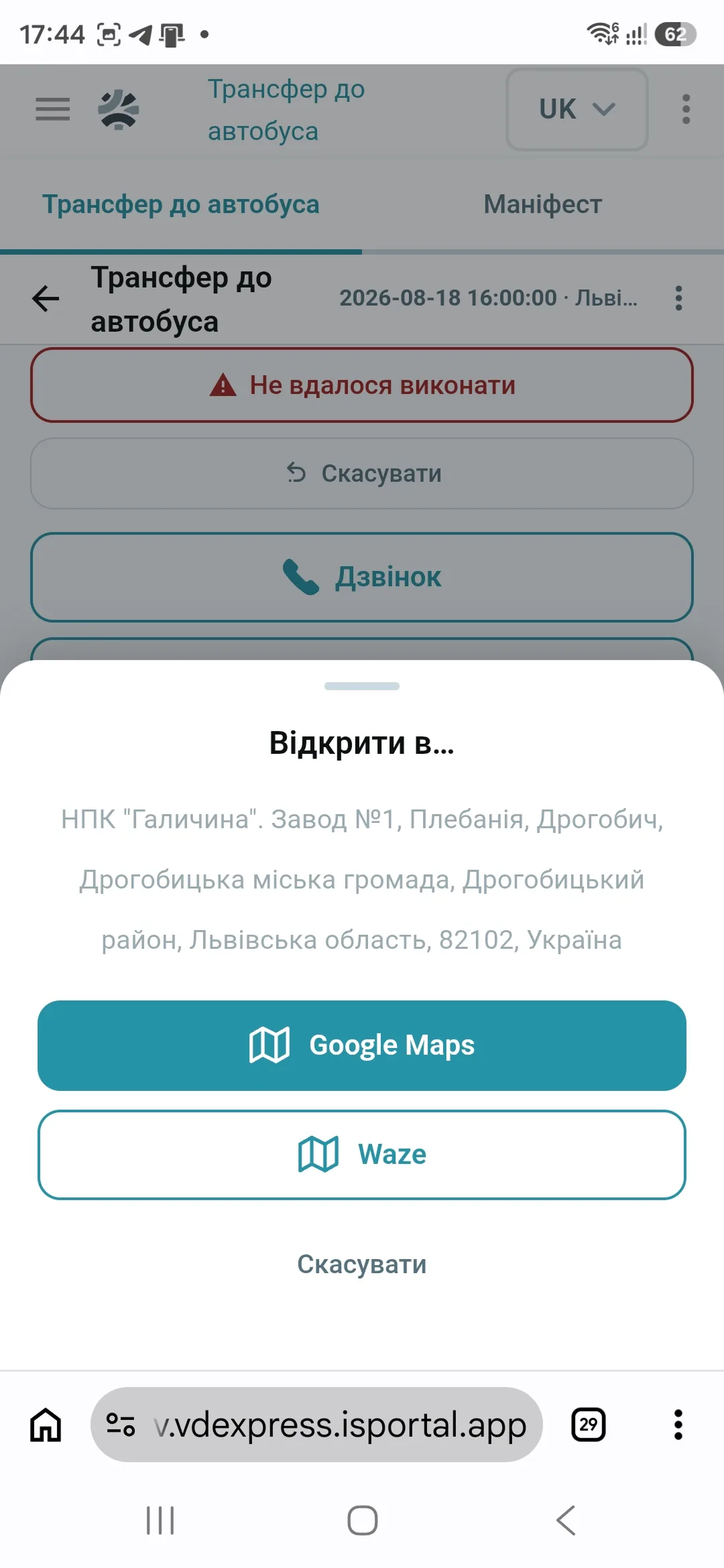
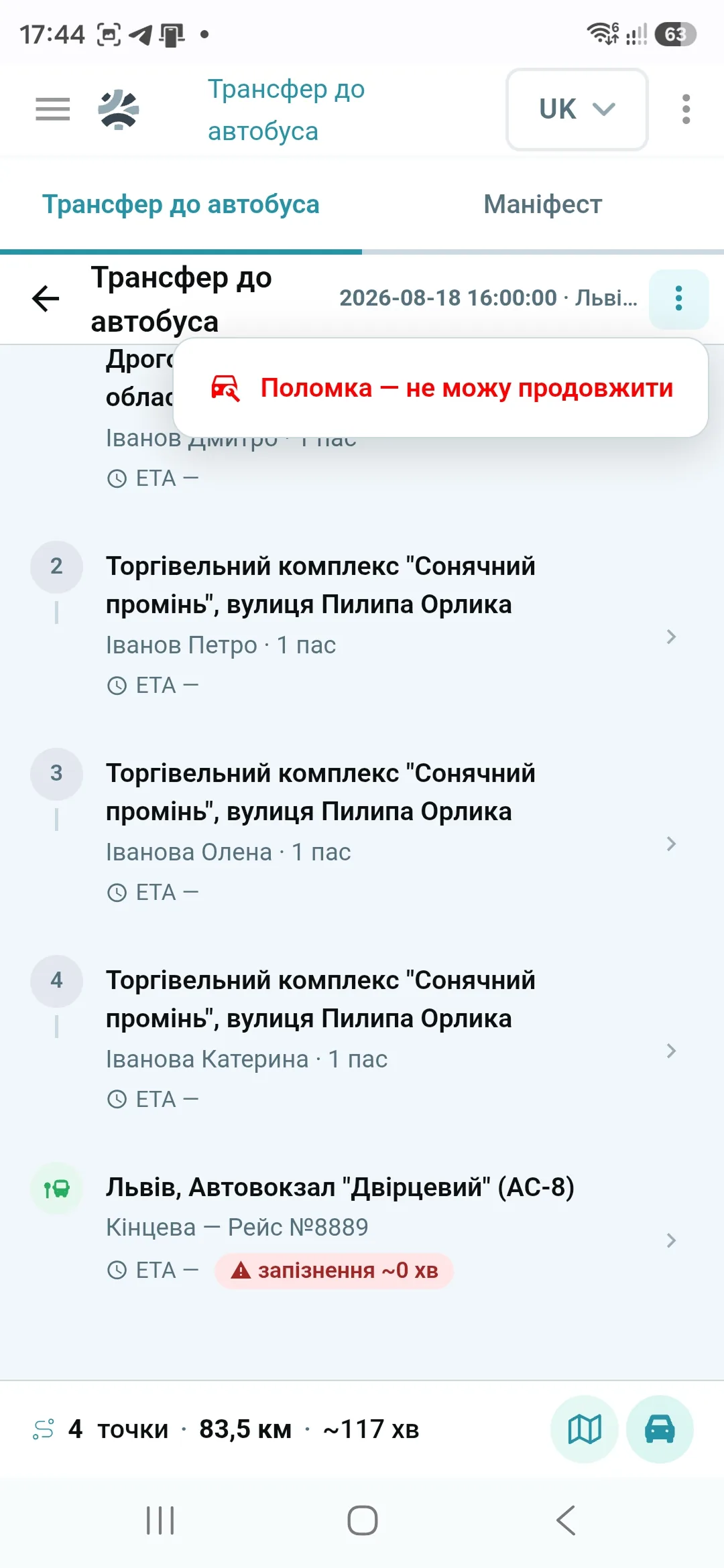
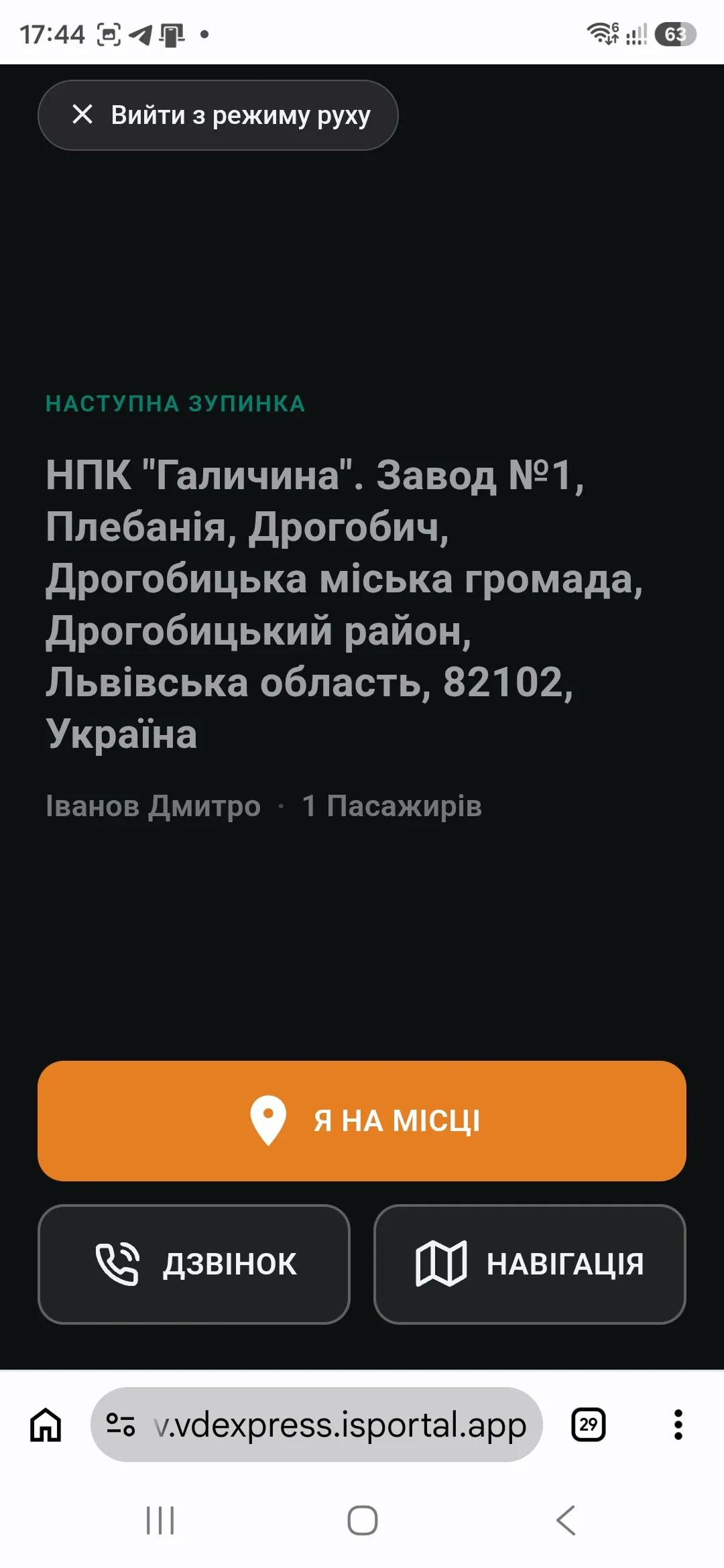
The driver opens the working interface in the smartphone browser and sees the assigned car, the number of passengers and the sequence of points. There is no separate app to install.
Before setting off, the driver confirms readiness. If the route cannot be done, they state the reason and the dispatcher is informed straight away.
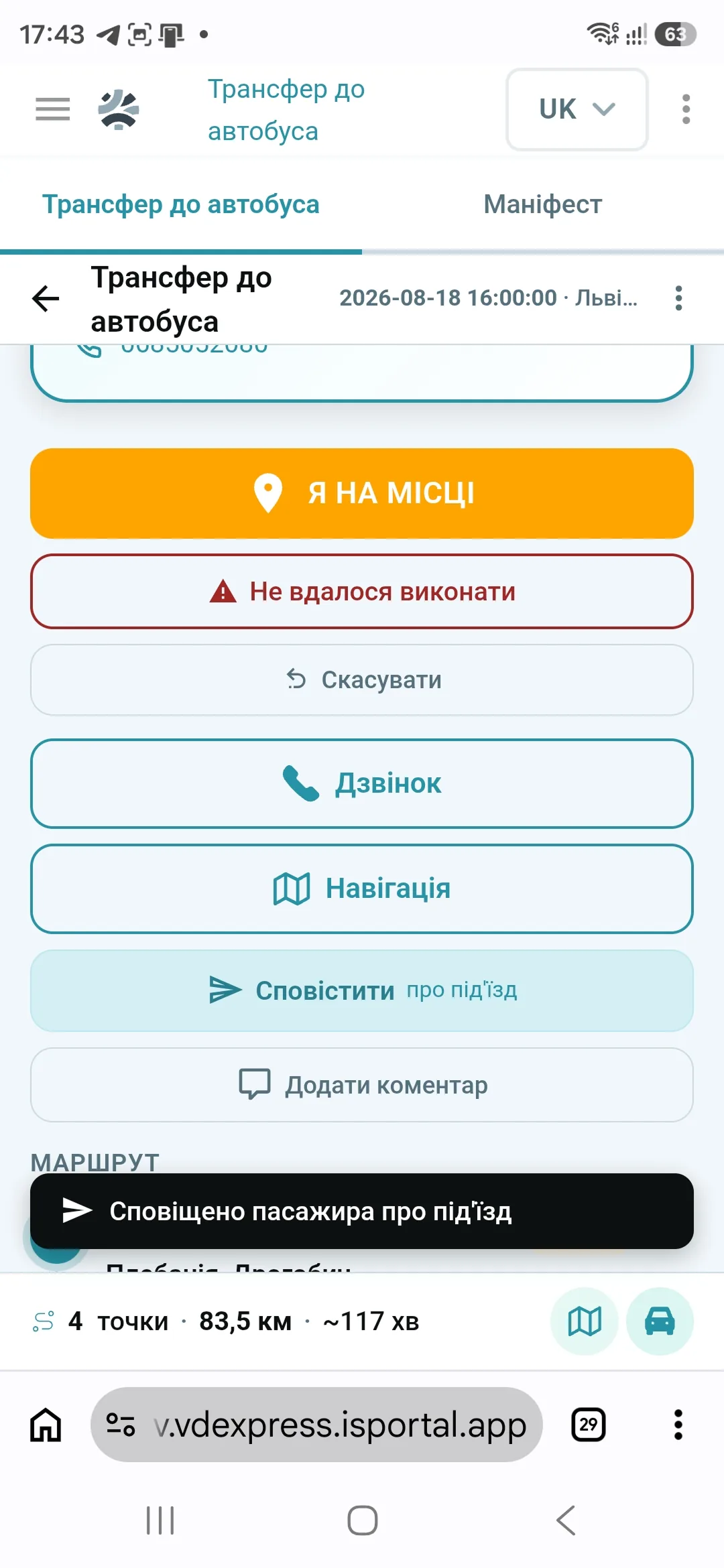
For each point the driver has:
- the address and the planned time
- navigation through Google Maps or Waze
- a one-tap call to the passenger
- the statuses “on the way”, “arrived”, “picked up” and “delivered”
- confirmation of the actual number of passengers
- a waiting timer
- a “passenger no-show” mark
- a short or free-form comment
- a message to the passenger that the car is approaching
The map shows numbered points and the route along the roads. If the internet connection drops for a while, the statuses and comments entered are saved and sent once the connection is back.
Payment for the transfer is handled in the main order under the carrier's rules. The transfer driver does not have to settle up with passengers separately.
gps
GPS tracking of transfer cars
The current location of the transfer cars is shown on the map together with the passenger points and the planned route.
The dispatcher can quickly check:
- where the car is
- which point it is serving
- whether it is following the planned route
- whether it will collect the passengers before the bus departs
- which requests are already done
- where a delay has occurred
GPS tracking does not replace transfer planning — it adds real data about how the car is moving.
What happens when the plan changes
Non-standard situations are recorded in the system and become visible to the dispatcher straight away.
No car available
The system shows the reason a request could not be assigned. The dispatcher can change the route, pick another car or hand the trip to an external taxi.
The car broke down
The driver reports the problem for the whole route. The dispatcher sees which passengers it affects and can reassign them to another vehicle.
The passenger did not show up
The driver records the status and the reason. The time and the details of the car's arrival stay in the request history.
Mobile internet dropped
The driver keeps working with the route already open. New statuses and comments are sent once the network is back.
The address belongs to no region
The request is not lost. The system flags it as needing the dispatcher's attention.
setup
How to set transfers up in BUSPORTAL
- 1. Create the geo zonesDraw the areas on the map within which passengers can order a pickup. For each area, define the responsible branch.
- 2. Link the geo zones to stopsSpecify which cities and districts passengers have to be brought to a particular bus stop from, and where to deliver them after the trip.
- 3. Set the pricing rulesChoose a fixed price, a distance-based calculation or a free transfer. Each geo zone can have its own rules.
- 4. Add cars and driversState the number of passenger seats, the boot capacity, the region of operation and the users allowed to perform transfers.
- 5. Turn on automatic planningFor a given date or branch you can use the automatic calculation or keep planning manually.
If routes and prices are already kept in BUSPORTAL, the basic setup can take as little as one working day. The BUSPORTAL team helps you create the first geo zones, pricing rules and pickup routes.
passenger
What the passenger gets after booking
The whole arrangement is stored with the ticket instead of staying in a phone call or a chat thread.
The passenger receives:
- the address or meeting point
- the transfer direction
- the service type and the price
- the approximate pickup time
- the dispatcher's message about the confirmed time
- an SMS or Viber alert that the car is approaching, if such messages are connected
- the details of the main bus trip in the same order
For a transfer after the scheduled bus arrives, the system can show the approximate delivery time to the address.

Transfers work together with the other BUSPORTAL modules
The transfer system needs no separate passenger database and no re-entry of trips. It uses the same bookings, schedule, stops, cars, drivers and payment statuses as the other BUSPORTAL modules.
- Dispatch software — requests, cars and routes on one screen
- Bus ticket booking system — the transfer as an add-on service in the order.
- Driver app — trips, passengers and working statuses in the phone.
- GPS tracking for buses — up-to-date vehicle location.
- VD-EXPRESS case study — transfers on international Ukraine — Italy trips.
- BUSPORTAL pricing — platform cost and trial terms.
FAQ
What is the BUSPORTAL transfer system?
It is a BUSPORTAL module that makes the pickup part of the bus journey. The carrier defines the service areas, the pricing rules and the vehicles, and the passenger books the ticket and the transfer in one order.
Can tickets be sold in cities where the bus does not stop?
Yes. The carrier creates a geo zone, links it to the relevant stop on the route and configures the transfer. After that, a passenger from that area can find the trip and order a pickup.
How is it decided whether a transfer is available at the passenger's address?
The address can be picked on the map or typed in. The system checks whether it falls inside a geo zone the carrier serves. If the address is outside it, the passenger finds out before placing the order.
How is the transfer price calculated?
The price follows the rules of the relevant geo zone: it can be a fixed amount, a distance-based calculation or a free pickup included in the ticket price. The price is added to the order automatically.
Can different areas have different prices?
Yes. A carrier can create several geo zones with different rates: for a city, set a fixed price; for the suburbs, a distance-based calculation; and for a regular destination, include the pickup in the ticket price.
Do you need your own cars?
No. If your own fleet cannot cover a request, it can be handed to an external partner with the price and the responsible provider recorded.
Who builds the pickup routes?
The system suggests which car picks up each passenger and in what order to visit the addresses. The dispatcher can move a request to another car or change the order of the points — before saving, the system shows whether there are enough seats and whether the passenger would be late for the scheduled bus.
Will the car change after it has been confirmed to the passenger?
No. Once confirmed, the passenger stays attached to the assigned car even after other routes are recalculated. That protects an already agreed pickup time from being changed automatically by accident.
What does a transfer driver need?
A smartphone with a browser. The driver opens the working interface and sees the assigned car, the number of passengers and the sequence of points — there is no separate app to install.
What happens if the driver loses internet?
The driver keeps working with the route already open. The statuses and comments entered are saved and sent once the connection is back.
Does the transfer driver take payment?
Payment for the transfer is handled in the main order under the carrier's rules. The transfer driver does not have to settle up with passengers separately.
Is the transfer module included in the BUSPORTAL subscription?
Transfers work inside BUSPORTAL and use the same bookings, schedule, stops, cars and drivers as the other modules. The platform cost and the trial terms are on the “BUSPORTAL pricing” page.
How long does it take to get started?
If routes and prices are already kept in BUSPORTAL, the basic setup can take as little as one working day. The BUSPORTAL team helps you create the first geo zones, pricing rules and pickup routes.
We will show the system on your own routes
During the demo we take one of your real bus routes, add a few cities or districts with no stop and show the whole process:
- how a passenger finds the trip and orders a transfer
- how the price is generated automatically
- how the dispatcher distributes the requests across cars
- how the driver works through the route in the phone
- how the owner keeps track of completion and costs
Try Live Pilot for free
- 30 minutes
- On your own routes
- Help with the setup